
Learn how to set up staff schedules in Nookal to manage practitioner availability across locations, create recurring weekly or fortnightly schedules, and handle annual leave efficiently.
In Nookal, you can:
- Work across different locations.
- Create schedules that are different every day of the week.
- Create different schedules for fortnightly or monthly variations.
- Manage annual leave, see Setting up Annual Leave for a Provider for more details.
Before you start...

To set up a Staff Schedule, the Staff member needs a Calendar column. In the Staff page, the  Provider and Calendar boxes need to be ticked.
1. Head to the Calendar.
2. Click on the Settings icon located in the top right corner of the window.
3. In the window that opens, scroll down to Set Schedule For, select the Practitioner and click on the Blue checkbox.
4. Select the Location tab for which you want to add a schedule for the Practitioner.
Hot Tips
If there are a large amount of Locations, they will be displayed in a dropdown menu instead.
5. Click on Add Schedule.
6. Work Week should be ticked, click on Next.
7. Select the occurrence of the schedule (weekly, fortnightly, etc) and the days of the week this exact schedule applies.
Important!

A different schedule is required for every day that has different available time periods and for every location. All these schedules will integrate within the Calendar.
8. Select Start Time and Finish Time and click Next.
Important!

The times displayed in the drop-down menu for Starts and Finishes are in 5 minute intervals, as this is the lowest common denominator for all Calendar Time Slots.
9. Select the starting and finishing date for this schedule then click on Next. This is useful to set the schedule for a future change or to create schedules that do not run weekly.
10. Click on Add Break. If not required, head to step 12.
11. Set the start and finish time and a Label for the break.
Hot Tips

Click on the plus icon to add more breaks or the minus icon to remove a break.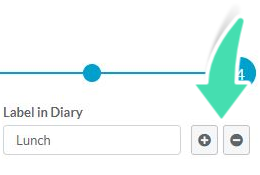
12. Once done, click Save.
13. Repeat for every different schedule.
The Schedules will be displayed per Practitioner per Location with the total amount of hours for the duration selected.
To view the full details of the Practitioners schedules, click on Detail View at the bottom.
Once done with a practitioner, click on the Practitioner's Name and select another one from the dropdown list to edit someone else's schedule or click on the X in the top right-hand side corner to head back to the Calendar.