
Nookal's Healthcode integration allows you to submit Third Party claims directly from your Nookal account to most UK Insurance Providers. When using the Healthcode integration, the status of the submitted claims will automatically update on the invoice for added efficiency.
Before you start...

A Healthcode account is needed before setting up the integration. Please head over to https://www.healthcode.co.uk/ to ensure that your account is set up correctly.

When you create your Healthcode account, you will be provided with login details including Site ID, Web Service ID and Password (known as credentials in Healthcode). You will need these credentials to set up the integration.
Connecting Healthcode to Nookal
1. Go to Setup.
2. Select Integrations under Connections.
3. Enable Healthcode from the list of integrations and click Configure.4. Click Add Location in the bottom right-hand corner.
5. Select the Location from the drop-down that corresponds to the registered account in Healthcode.
6. Enter the Healthcode credentials from your Healthcode Account, including Site ID, Web Service ID and Password.
Hot Tips
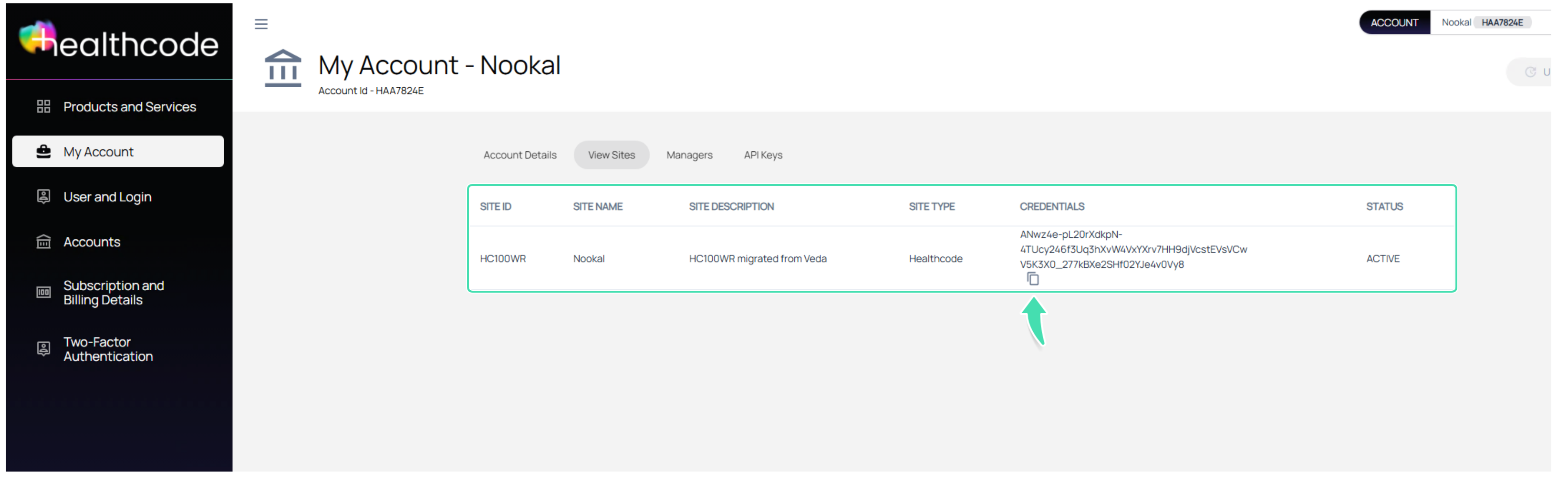
To find your Healthcode password:
a. Login to Healthcode
b. Click Proceed to Your Productc. Click My Account > View Sites > View Credentials
d. Copy the Credentials and paste it in the password section in Nookal.
7. When all fields have been entered correctly, click on the Green Tick.
Hot Tips

If you click the small blue Information icon, it will show you the Providers that are set up for claiming Healthcode at that Location.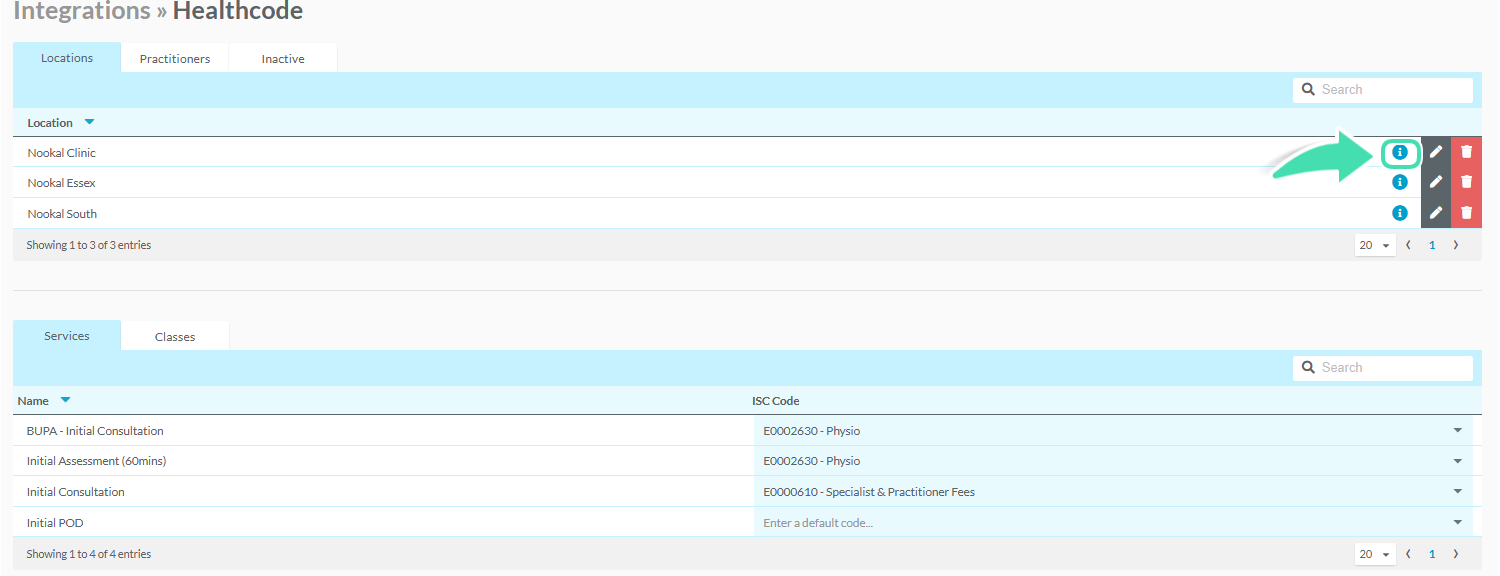
Important!

When you click the blue Information icon and get an error message like this you will need to check and re-enter your Healthcode Credentials. In the event that this does not resolve the probem, you will need to get in touch with Healthcode and ask them to provide you with a valid Site ID.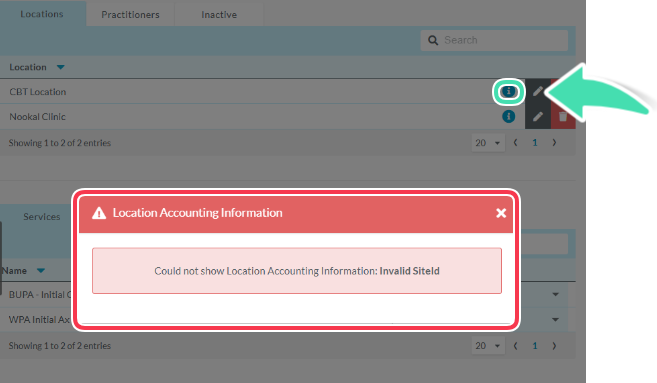
Setting up Contacts for Healthcode
For the Healthcode integration to work, linking the correct Healthcode Insurer to the Contact is vital.
1. Navigate to the Contacts menu in your Nookal account.
2. If the Insurer is already listed as a Contact, select them from the list. If they are not listed, see Adding Contacts for more information.
3. Fill out the required details to make the Contact a Payer, including ticking the Payer checkbox.
4. At Healthcode Insurer select the correct Healthcode Insurer from the drop-down.
5. Click Save Changes.
Setting up Staff for Healthcode
Important!


For the Healthcode integration to successfully match details, the staff details must correspond exactly in both Nookal and Healthcode. For example, Joe Bloggs in your Healthcode account will not match to Joseph Bloggs in your Nookal account.


The Healthcode integration relies on the Controlling Specialist and Payee Provider being set up correctly in your Healthcode Registration details. If you're unsure where to add this please contact Healthcode.
1. Navigate to Setup.
2. Click on Staff under Users.
Hot Tips

If you haven't set up any Providers in Nookal, please see Adding Staff Members and Setting up Staff as Providers.
3. Click on the Provider's Name.
4. At Integrations tick the Enable Integrations checkbox.
5. Click Save Changes.
Hot Tips

Some Insurers use a generic Location name rather than an individual provider, you may need to add a staff member as an inactive provider. Please contact support@nookal.com if you need to do this.
Setting up Services for Healthcode
1. Go to Setup > Items > Services.
2. Click on the Service you want to use for Healthcode claiming.
3. Click Enable Integrations.
4. Under Integrations tick the checkbox next to Healthcode.
5. Click Save Changes.
6. Repeat for all Services required.
Hot Tips
Adding an ISC Code to your Services will save you time adding it to each individual claim. See below steps on how to add ISC Codes.
7. Once the items have Healthcode Enabled, go back to Setup > Connections > Integrations > Healthcode > Configure.
8. Go to the Services tab.
9. Next to the Service, click on Enter a default code.
10. From the list, find the specific ISC Code and click the + icon.11. Repeat for all Services to be claimed via Healthcode.
12. Click the Save icon.
Hot Tips

You can select an Insurer from this tab and add a default provider as the Controlling Specialist.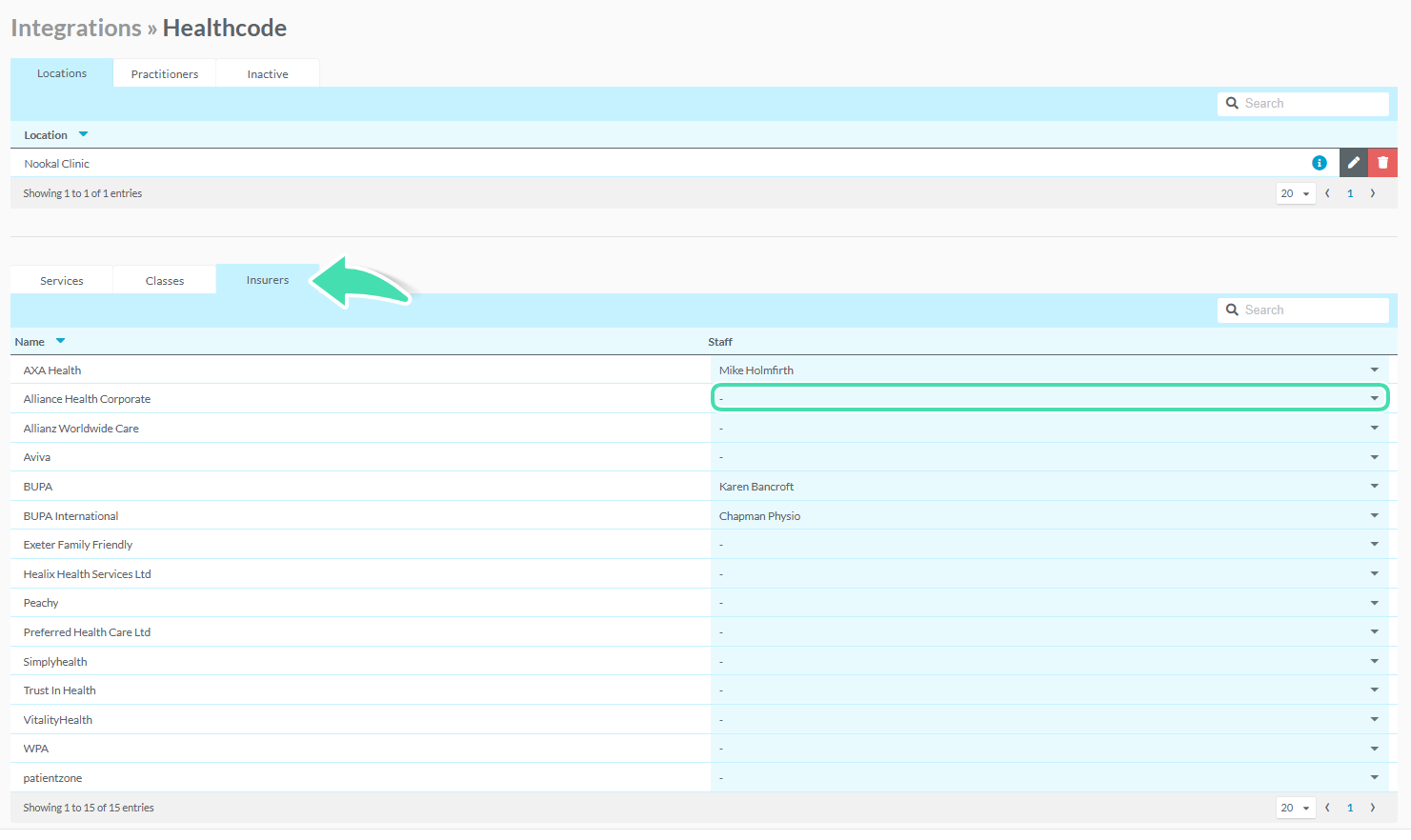
Discover more...

See Submitting Claims to Healthcode for instructions on how to start claiming.