
NDIS Australia now releases participant budgets in separate tranches, which means certain portions of the budget become available only after specific dates.
To help manage this, Nookal has introduced support for sub-budgets within the Advanced Budgets feature. This allows you to set up individual tranches with their own start dates. When the start date arrives, the new tranche is automatically added to the patient's total available budget—making it easy to track and access funds as they become available.
Before you start...
NDIS Integration or Patient Funding needs to be enabled for the Budget feature to be used for the Payer of a Case. See Setting up the NDIS Integration for more details.
1. Open the Patient's Case.
Hot Tips
A budget can also be added when creating a Case at the time of making a Booking.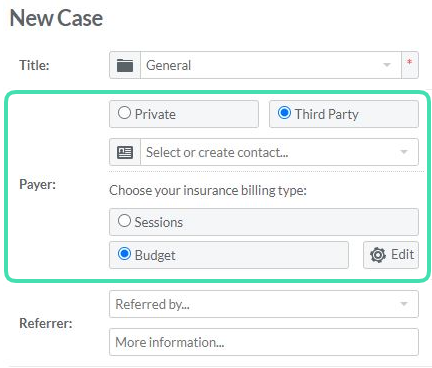
2. Click Add Payer.
3. Search and select the Payer within the Contacts.
4. Select Budget as the billing type and click Next.
5. In the Payer column of the Case's page, click Edit in the Budget section.
6. Click Add Another Budget.
Hot Tips
The Categories displayed are those created in either the NDIS or Patient Funding setup pages. If you have the NDIS integration enabled, these categories will override any that have been set up in Patient Funding.
7. Add the Budget Start Date.
8. Add the Budget Amount.
9. Click Save.
10. Repeat steps 6-9 for all sub-budget dates and categories as required.
11. You will see the list of sub-budgets on the main budget page. As the budgets become unlocked, the totals at the top will increase.
12. If required, you can modify the budget tranches by expanding them. You can change the Start date and the amounts per Category.
Once the Case is set with a Budget, any invoices generated for the Case and Payer will update the remaining balance. For more information see Managing and Tracking a Budget