
The Patient Portal Template is what Patients will see when they log in to your Patient Portal, regardless of the Location they are set to.
1. Navigate to Setup.
2. Click on Create Template under Extensions.
3. From here, you can view the list of current Enabled and Disabled Templates.
Please note: There should only be one active Patient Portal template at a time and enabling a disabled Patient Portal template should disable any existing enabled template
3. Click Create Template from the bottom-right of the page to start building templates.
4. Select the Patient Portal option in the Template Builder dropdown
5. Enter a Template Name and Save.
6. Click the Spanner icon to see the Elements available to enable or disable for each menu. A preview will be shown as changes are made.
7. Elements will be listed for each Menu item reflected in what is viewed in the Patient Portal. More information on each Element can be found below.
8 After making your required changes, click Save.
My Bookings Element
This Element allows your Patient to see their current and upcoming bookings in the Patient Portal with the following options to enable or disable:
- Allow Patients to make bookings - This allows Patients to make new bookings.
Allow Patients to confirm bookings - This allows Patients to Confirm bookings, instead of replying to a confirmation message.
Allow Patients to move bookings - This allows Patients to reschedule appointments.
Allow Patients to cancel bookings - This allows Patients to cancel their bookings.
Allow Patients to rebook appointments - this allows the Patients to book an identical appointment based on a previous appointment.
If you don’t have Online Bookings turned on, the following options will be off and disabled:
Allow Patients to make bookings
Allow Patients to confirm bookings
Allow Patients to rebook appointments
Allow Patients to move bookings
- The "Allow Patients to cancel bookings" is independent of the Online Bookings being turned on.
Unpaid Bookings Element
This Element allows patients to view Unpaid Bookings in the Patient Portal with the following options to enable or disable:
- Allow Patients to view invoices - This allows Patients to view their Invoices for Past Bookings.
- Allow Patients to download invoices - This allows Patients to download their Invoices for Past Bookings.
- Allow Patients to pay for bookings - This allows Patients to pay their Invoices that for Past Bookings.
- Allow Patients to use passes - This allows Patients to use any of their Passes pay their Invoices for Past Bookings.
- Allow Patients to use credits - This allows Patients to use Account Credits against their profile to pay their Invoices for Past Bookings.
The “Allow Patients to download invoices” option is linked to “Allow Patients to view invoices” and will be disabled if this option is not checked
Chat Element
This Element allows patients to send messages to the staff or the location with the following options to enable or disable:
- Allow Patients to message locations - Allows patients to send messages to the Location, which can be answered by any staff member with the following Permissions.
- Allow Patients to message providers - Allows Patients to specifically message logged in providers with the above Permissions.
- Allow Patients to send documents - Patients can attach a file to a message, Only a single file can be attached, and only PDF and DOC files can be attached.
Payment Methods Element
This Element allows patients to Pay for Bookings in the Patient Portal with the following options to enable or disable:
Require Debit Card T&C Approval - used to enforce that the Patient accept your terms and conditions for using credit cards for payments.
Hot Tip
You will need a Stripe Connect account to use Credit card payment and Storage through the Patient Portal.
To activate this head along to Setup > Connections > Integrations > Stripe > Configure > Click Migrate to Stripe Connect.
In the Pop up window select the Locations you want to use and click Connect.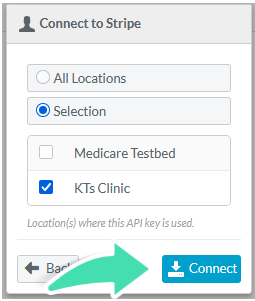
After doing this, simply log in to Stripe and connect your account by following the prompts.
Passes Element
This Element allows Patients to use Passes to pay for Appointments as well as Purchase Passes online with the following options to enable or disable:
- Patients can view redemptions
- Patients can download redemptions
Patient Profile Element
This Element allows the Patient to Edit their Profile with the following options to enable or disable:
- Allow Patients to edit profile details - this will allow Patients to edit, change, or remove the information from their Patient Profile.