
Important!
The following instructions are for the New Online Bookings system. For information on How Patients Can Book Online for the Legacy Online Bookings system please click here.
Accessing the Online Booking Platform
For Patients to book online, they will first require access to the Online Bookings platform.
Despite a website being an excellent resource for Patients to learn about the practice and access Online Bookings, it is not a requirement.
Patients can easily access Online Bookings from a link or button that has been emailed to them.
See Generating a Link for Online Bookings for more details.
Booking Process
After the Patient has accessed the Online Bookings platform, they can follow the steps below to successfully book online.
1. Depending on the option selected when Generating a Link for Online Bookings Patients will either start by Selecting a Location or Selecting a Practitioner.
If the Patient selects a Location first, selecting the Practitioner will be the next step.
Conversely, if the Patient selects a Practitioner first, selecting the Location will be the next step.
-
Selecting a Location by clicking a Location Name
Hot Tips
If there are multiple Locations available to choose from, the Patient can select Any Location to search for a booking in any of the available Locations.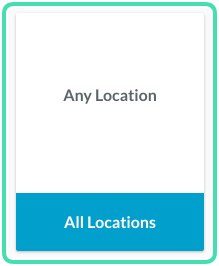
- Selecting a Practitioner by clicking a Practitioner Name
Hot Tips
If there are multiple Practitioners available to choose from, the Patient can select Any Practitioner to search for a booking from any of the available Practitioners. Using Any Practitioner will also allow for Multiple Bookings of the same Class type if sessions for that Class are available with different Practitioners.
2. After selecting the Location and Practitioner, Patients then select from either Appointments or Classes.
3. They will then need to select the Appointment or Class from within it's Category and click Book.
Use the Search to quickly find the correct Appointment or Class.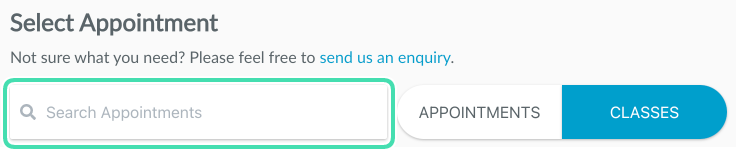
4. Patients select the Date from those available for this specific booking type.
5. Patients select an available Time on the chosen Date.
6. Patients click Book, or if it is a Class with future availability and the Patient wants to book another session for a future Date or Time click Book Another and select another session and then click Book when finished.
7. Patients enter their Personal Details or use their Online Booking Code (which is available for existing Patients only.) First-time Patients will receive their Online Booking Code in their first Booking Confirmation Email.
Hot Tips
If entering an Online Booking Code, the Patient must click Apply after entering the code. Clicking the Arrow symbol will reset all of the fields in the form, meaning they will need to be entered again.
8. Lastly, Patients will need to agree to the Terms and Conditions and click Book to finalise the booking.
If the Online Payment options are enabled, Patients can finalise the booking by clicking either Book or Pay according to the set up for the selected Booking type.
Important!
If the Payment Required box is selected all Patients need to Pay in full via credit card to complete the online booking.
If some Patients don’t need to pay when booking online do not tick the Payment Required box. This will give Patients the option to book without paying (Book) or pay in full (Pay).
If the Patient clicks Pay, they will be redirected to the payment page to enter the Card Details and click Pay.
Once the payment is successful, the Patient will see the Booking Confirmation screen and receive a Booking Confirmation email.
Important!
Notifications after completing an Online Booking:
- The Patient will receive a confirmation email.

- Alerts for Online Bookings and Bookings Cancelled Online will appear in the Notifications section of the Message Centre if setup via Online Bookings Location Setup.

- The Provider can additionally opt to be notified of Online Bookings via Email and SMS via the Online Bookings Staff Setup.

- A secondary Email address can be set to notify another staff member by Email when an Online Booking is made via the Online Bookings Staff Setup.
Cancelling an Online Booking
Depending on the Online Bookings Location Setup, Appointments booked online can be cancelled online by Patients.
1. If your Online Bookings Location Setup allows for Cancellations, the Patient will be able to Cancel by clicking the link in their Booking Confirmation Email.
2. Clicking the email link will take the Patient to a page where they will need to click Confirm to complete the Cancellation.
Hot Tips
It is a good idea to set a Minimum Cancellation Time for each Location to give sufficient time for the booking spot to be filled by another Patient. It is also possible to select No Cancellations to block Patients from Cancelling Online Bookings. See Setting Up Locations for Online Bookings for more information.