
Once Patients are created in Nookal, users can access the Patient Profile in two ways: from an Appointment in the Calendar or from the Patients section. See the step-by-step instructions below on how to find Patients using these two methods.
Accessing a Patient's Profile from an Appointment in the Calendar
1. In the Calendar, click on an Appointment for the Patient.
2. In Classic View, click on Patient Info.
3. Click on one of these options to access the corresponding section in the Patient Profile:
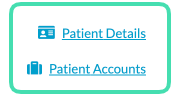
- Patient Details - Patient's main Profile section (demographic information).
- Patient Accounts - Account section including invoices, credit, payment history, etc.
Hot Tips
In Fresh View, click on the Patient Tab.Click on Patients Details or Patients Accounts to reach the relevant section.
Accessing a Patient's Profile from the Patients Section
1. Click on Patients in the top navigation bar.
2. Enter Patient information in one or multiple search boxes.
3. Once information has been entered in a search box, the system will display a list of Patients matching this information on the results page. Click on the Patient Name.
If the Patient isn't showing in the list, the Patient might be restricted to a different Location - make sure the Location at the top right of the screen is the right one.
4. This action will open the Patient Profile page.
5. Find all the information regarding this Patient by navigating through the appropriate sections on the left side menu.